


WhatsApp Marketing in 2026: Strategies That Actually Convert
With over 500 million active users in India, WhatsApp is not just a messaging app — it is where your customers spend a significant portion of their digital day. They share news, coordinate with family, manage group chats, and increasingly, they shop, seek support, and make decisions — all within WhatsApp. For businesses, this is not a future opportunity. It is a present reality that competitors are already capitalising on.
But WhatsApp marketing in 2026 is not simply about blasting promotional messages to a contact list. The most effective WhatsApp marketing strategies are personal, conversational, and customer-centric — leveraging the intimacy of the messaging channel to build genuine relationships and drive measurable business outcomes.
In this guide, we break down the WhatsApp marketing strategies that are generating real results for Indian businesses in 2026 — and explain how Muzztech's WhatsApp Business API platform gives you the tools to execute them at scale.
Why WhatsApp is India's Most Powerful Marketing Channel in 2026
The case for WhatsApp as a marketing channel is built on numbers that no other channel can match in the Indian context:
- Open rates above 90%: WhatsApp messages are opened and read far more consistently than email (20-25%) or even SMS (98% for SMS, but WhatsApp messages are read within the conversational context — meaning engagement is higher and more sustained).
- 500 million Indian users: No other messaging platform comes close to WhatsApp's penetration across urban, semi-urban, and even rural India.
- Rich media and interactivity: Unlike SMS, WhatsApp supports images, videos, PDFs, audio, location sharing, interactive buttons, and product catalogues — enabling significantly richer brand experiences.
- Two-way conversations: WhatsApp is inherently conversational — customers can respond, ask questions, and complete purchases within the same thread, reducing friction in the customer journey.
- Trusted channel: Because WhatsApp is primarily used for personal communication, messages from verified businesses carry a higher trust signal than those received through other channels.
The Foundation of WhatsApp Marketing: The Business API
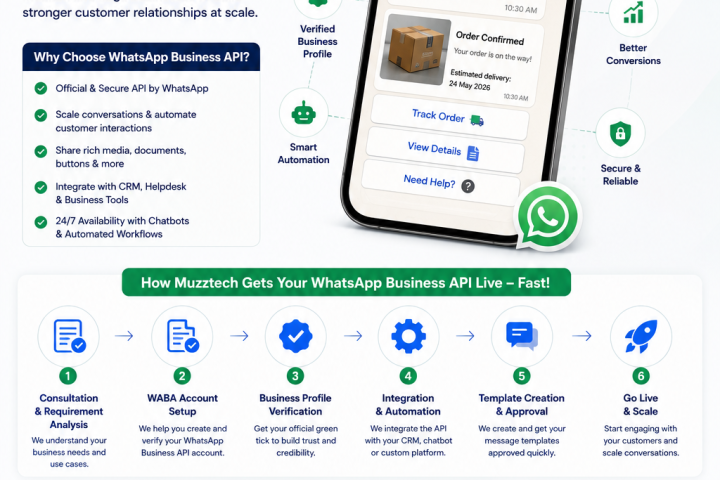
Effective WhatsApp marketing at scale requires the WhatsApp Business API — not the free WhatsApp Business App, which is limited to 256-contact broadcasts and manual messaging. The API, accessed through official Meta Business Partners like Muzztech, gives businesses:
- Unlimited broadcast reach to opted-in contacts
- Approved marketing message templates for outbound campaigns
- Interactive message formats — list messages, reply buttons, call-to-action buttons
- AI chatbot integration for automated conversational flows
- Green tick verified business profile for instant credibility
- Full API integration with CRM, e-commerce platforms, and marketing automation tools
Strategy 1: High-Converting WhatsApp Broadcast Campaigns
WhatsApp broadcast campaigns are the WhatsApp equivalent of email newsletters — but with dramatically higher open and engagement rates. Through the WhatsApp Business API, you can send approved marketing templates to your entire opted-in contact base simultaneously.
To maximise the conversion rate of your broadcast campaigns:
- Lead with value, not a sale: Open with something genuinely useful — an exclusive early access offer, a useful tip, or personalised content — before presenting the call to action.
- Use rich media: A short product video, a compelling image, or a visually appealing offer card outperforms plain text significantly. WhatsApp's rich media support is one of its key advantages over SMS.
- Add interactive buttons: Include quick-reply buttons ("Claim offer", "Learn more") or call-to-action buttons ("Shop now", "Call us") to make it effortless for the recipient to take the next step.
- Segment and personalise: Do not send the same message to everyone. Use purchase history, location, or engagement data to send relevant offers to each segment — a customer who bought running shoes should receive different content than one who bought formal wear.
Strategy 2: Conversational Commerce — Selling Inside the Chat
Conversational commerce is the practice of enabling customers to browse, enquire, and purchase without ever leaving the WhatsApp conversation. In 2026, this is one of the most powerful and fastest-growing WhatsApp marketing strategies in India — particularly for e-commerce, fashion, FMCG, and direct-to-consumer brands.
Key tactics for conversational commerce on WhatsApp:
- WhatsApp Product Catalogue: Showcase your products directly inside WhatsApp — customers can browse, select, and enquire about items from within the chat interface without visiting a separate website.
- AI-powered shopping assistant: Deploy a WhatsApp chatbot that recommends products based on the customer's stated preferences, budget, and past purchase history — providing a personalised shopping experience at scale.
- Seamless payment integration: Integrate WhatsApp with payment gateways so customers can confirm and pay for their purchase directly within the conversation — reducing drop-off at the checkout stage.
Strategy 3: Abandoned Cart Recovery and Customer Retargeting
Cart abandonment is one of the biggest revenue leaks for Indian e-commerce businesses — with industry abandonment rates typically ranging from 70% to 80%. WhatsApp is proving to be the most effective channel for recovering abandoned carts, consistently outperforming email for recovery rates.
An effective WhatsApp abandoned cart strategy follows a structured sequence:
- First message (30–60 minutes after abandonment): A friendly reminder with an image of the abandoned product and a one-tap link back to the cart — no pressure, just a helpful nudge.
- Second message (24 hours later, if no purchase): A value-added message — social proof ("1,200 customers love this product"), a sense of scarcity ("Only 3 left in stock"), or a small incentive ("Here's 10% off, just for you").
- Third message (48 hours later, final attempt): A last-chance message with the most compelling offer. After this, remove the customer from the cart recovery sequence to avoid over-messaging.
Beyond cart abandonment, WhatsApp retargeting allows businesses to re-engage customers who viewed specific products, lapsed customers who have not purchased in 30+ days, and customers who opened a previous WhatsApp message but did not convert — all with personalised, context-aware messages.
Strategy 4: WhatsApp as a Customer Support and Loyalty Channel
WhatsApp marketing is not just about outbound campaigns — it is also about being available for inbound conversations. Customers who can reach a business quickly and easily on WhatsApp are significantly more loyal and more likely to repurchase than those who have to navigate a phone queue or wait for an email response.
High-performing WhatsApp support and loyalty tactics include:
- Instant order and delivery updates: Proactive WhatsApp notifications for every stage of the order journey — confirmation, dispatch, out for delivery, delivered — dramatically reduce inbound support queries.
- Post-purchase engagement: A WhatsApp message 2–3 days after delivery asking for a rating, offering care tips for the product, or suggesting complementary purchases extends the customer relationship beyond the transaction.
- Loyalty and reward notifications: Alert customers to their loyalty points balance, tier upgrades, and exclusive member offers through WhatsApp — driving repeat purchase behaviour.
- AI chatbot + human escalation: Deploy a WhatsApp chatbot to handle FAQs, order queries, and return requests instantly — with seamless escalation to a human agent for complex issues, ensuring every customer gets a resolution.
Strategy 5: Building a High-Quality Opt-In List — The Foundation of WhatsApp Marketing
Every WhatsApp marketing strategy depends on one non-negotiable foundation: explicit opt-in consent. Unlike SMS, where DLT registration manages compliance at the platform level, WhatsApp requires businesses to obtain clear, documented opt-in from every contact before sending marketing messages.
Effective opt-in strategies that build high-quality WhatsApp contact lists include:
- Website opt-in widgets: A WhatsApp opt-in checkbox or button on your website checkout, contact form, or pop-up — making it easy for engaged website visitors to subscribe.
- Click-to-WhatsApp ads: Facebook and Instagram ads with a "Chat on WhatsApp" CTA that opens a WhatsApp conversation directly — allowing you to capture opt-ins from cold audiences at scale.
- In-store QR codes: A QR code at the point of purchase that opens a WhatsApp conversation — particularly effective for retail, restaurant, and service businesses.
- Lead magnets: Offer a valuable incentive — a discount, a free guide, an exclusive offer — in exchange for WhatsApp opt-in. Customers who opt in for a specific benefit are far more engaged than those who were simply added to a list.
A smaller list of genuinely opted-in, engaged contacts will always outperform a larger list of contacts who did not explicitly consent. Meta's quality rating system for WhatsApp Business accounts rewards businesses with engaged audiences — and penalises those with high block and report rates.
How Muzztech Powers Your WhatsApp Marketing Strategy
As an official Meta Business Partner, Muzztech gives Indian businesses authorised access to the WhatsApp Business API — along with the tools, support, and expertise to build and execute high-converting WhatsApp marketing campaigns:
- Fast API onboarding: Go from zero to live WhatsApp marketing in as little as 3 business days with Muzztech's guided onboarding process.
- Template creation and approval: Our team designs effective marketing templates and manages the Meta approval process on your behalf.
- Campaign management dashboard: Plan, schedule, and monitor WhatsApp broadcast campaigns — with real-time delivery, read, and click-through analytics.
- Chatbot deployment: Build and deploy AI-powered or rule-based WhatsApp chatbots for sales, support, and lead qualification — no coding required.
- CRM and e-commerce integration: Connect WhatsApp to your existing systems via our Enterprise SMS API for automated trigger-based campaigns, order notifications, and abandoned cart recovery.
- Unified CPaaS platform: Manage WhatsApp alongside your Bulk SMS, RCS, and IVR campaigns — with unified analytics across every channel.